
Products
API Canvas
Visual API integration for Unity. Drag, drop, and call any REST endpoint. No code, no hassle.
Status: Coming Soon
Introduction
What does it do?
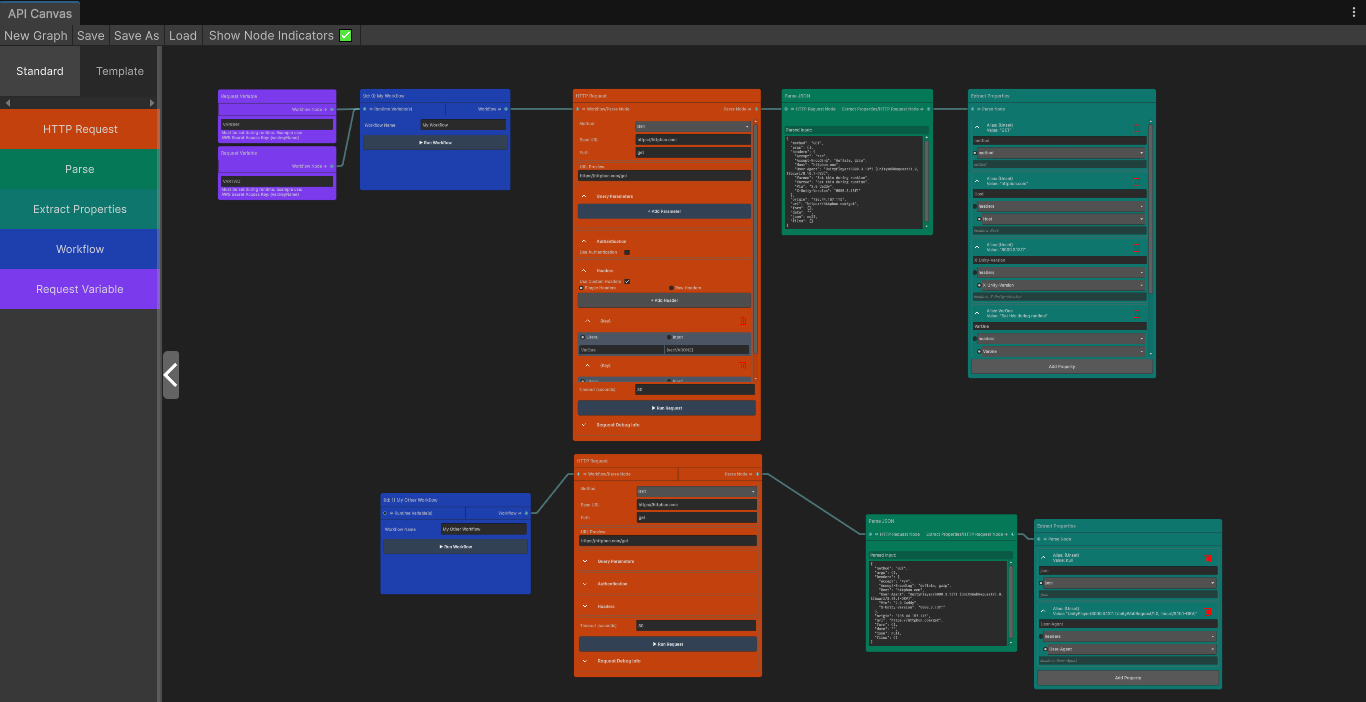
Drag-and-drop API workflows in the Unity Editor. Extract any JSON value as a string alias via intuitive dropdowns. Call the workflow at runtime with dynamic inputs, perfect for login systems, leaderboards, or any REST endpoint.
Description
Stop parsing JSON manually. Start visually mapping your API responses, once.
Building applications that talk to backends usually means endless UnityWebRequest boilerplate, hunting for nested JSON keys, and converting values line-by-line. API Canvas eliminates that friction by turning API integration into a visual, node-based setup inside the Unity Editor, leveraging Experimental.GraphView purely as a design-time interface.
How the Visual Workflow Works
Workflow Node (Entry Point)
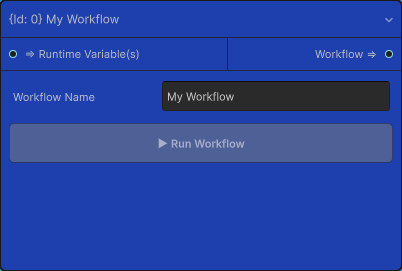
This is the starting point for an execution chain. Graphs can contain multiple Workflow Nodes, allowing you to organize separate operations (like Login, GetUserStats, SubmitScore) within a single asset. Each Workflow Node acts as a trigger that runs its connected chain of Request, Parse, and Extract nodes when called.
Request Variable Nodes
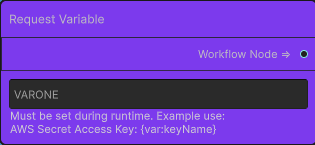
Connect as many as you need to the Workflow Node and give each an input key (string). These are used to set dynamic runtime variables for your requests (for example, user-entered credentials for authentication).
HTTP Request Node
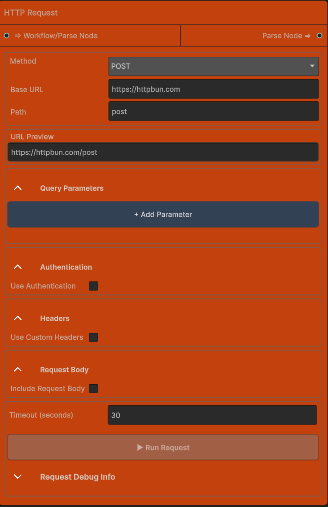
Drop it in and configure everything in one place:
- Setup: Paste your URL, choose the HTTP method (GET/POST/etc.), and set headers, query parameters, and body content.
- Dynamic Values: Use
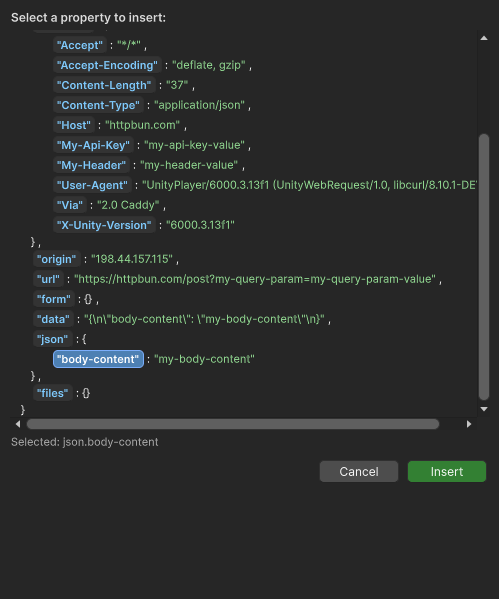
{var:USERNAME}placeholders to inject runtime data (like user credentials). - Visual Property Insertion: Instead of typing a long dot-notation path, click "Insert Property", select the desired field from a formatted JSON preview, and click "Insert" - zero typos, zero guesswork.
Parse Node
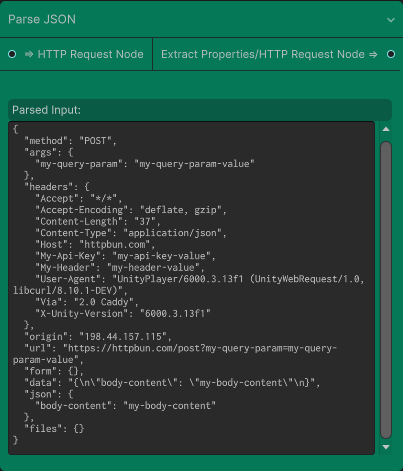
Connect your Request Node here to save the response for use on subsequent requests. A typical chain might look like: Login Request → Parse Login → Get User Stats using Token from parsed data → Parse Stats → Extract Properties.
Extract Properties Node (The Core Mechanic)
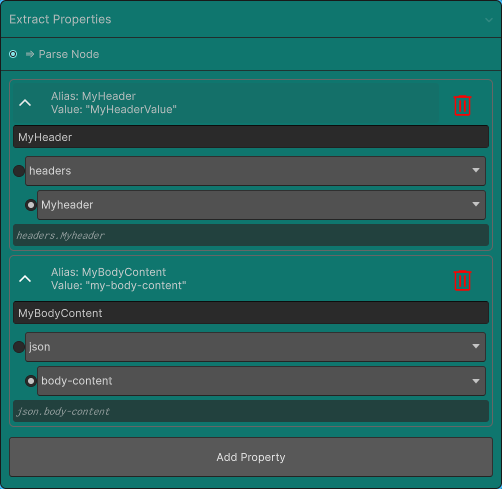
Add rows to this node. For each row, give it an Alias (e.g., PlayerName, AuthToken, IsActiveFlag) and select the exact property path from the auto-populated dropdown. Execute your workflow at runtime and all these properties, freshly obtained from the API call, become available to you.
Everything is a string: The tool extracts values as strings. You get "John", "true", "8675309", or the entire nested JSON object as a string. You can parse it further in your application logic if needed, giving you ultimate flexibility without forcing strict C# class definitions on your dynamic backend.
Editor vs. Runtime (The "Why")
Editor: Your configuration and testing sandbox. Run your workflows to ensure requests work and dropdown paths are correct.
Runtime: None of the returned data is hardcoded. When you trigger the workflow (hooking it to a UI button, InputField, etc.), you pass in dynamic runtime values, such as the username and password a player just typed. The workflow makes the live API call and returns the extracted properties via their Aliases. Retrieve them via the included Visual Scripting nodes for a no-code solution, or use them directly in your own code with a clean C# method (e.g., Workflow.GetProperty("AuthToken")).
Real-World Use Case (Login UI)
A developer is building a Firebase login screen.
- They drag in a Workflow node.
- They drag in the included http template (or a new one & fill in the URL, headers, and body themselves) and connect it to the Workflow node.
- They drag in Request Variable nodes for the
{var:EMAIL}&{var:PASSWORD}entries in the request body and connect them to the Workflow node. - They drag in a Parse node & connect it to the HTTP Request node.
- They drag in an Extract Properties node, setup aliases for "displayName", "idToken", etc. & connect it to the Parse node.
At runtime, they hook the "Submit" button to execute the workflow. The player enters their credentials and hits submit which are set as the data source for {var:EMAIL} & {var:PASSWORD} via Visual Scripting/Code. Once the workflow runs, the parsed properties are available as clean strings, ready to be stored or passed to the next scene.
Supercharge Your Pipeline with Request Templates
Stop reinventing the wheel for every graph. Users can create Request Templates, assigning pre-populated URL, query parameters, headers, and body structure, allowing them to drag & drop into graphs as needed.
- Reuse the same authenticated call across 10 different graphs without rebuilding it.
- Share templates with your team to standardize endpoints.
- I have even pre-populated the library with common providers like Firebase Login and AWS Cognito Login. Just drop them in, fill in your information, and they are ready to use.
Who Is This For?
- Designers and No-Code Enthusiasts: Open a Visual Scripting Graph and use the API Canvas nodes to run workflows, retrieve properties, and use them however you like, all without touching any C# code.
- Technical Artists and Pipeline Developers: Build complex authenticated API chains visually, save them as reusable templates, and hand them off to your team via Visual Scripting graphs, while keeping the underlying architecture clean and maintainable.
- Programmers: Call the workflow directly via a clean C# method. Pass in your runtime variables (if applicable), run the workflow, and retrieve properties as needed.
Set up your API calls visually, test them instantly, call them dynamically with player-specific data, and never write another JSON deserialization loop again.
Future Implementations (Roadmap)
API Canvas is already a powerful tool for visual API integration, but I am actively building on top of it. Here is what is on the horizon:
- Full JSON builder: No entering raw JSON if you don't want to. Similar to the insert property behavior but for the entire JSON structure.
- Convert to C# (Standard)/C# (Unity Specific)/JavaScript/etc. code: Create .cs/.js/etc. files based on a graph/workflow setup. This would allow you to easily transfer it to different codebases outside of Unity.
- Collection looping for property extraction: Rather than targeting a specific property on a specific collection multiple times for multiple objects, target the same (or multiple) property on an entire collection with a single entry line and get a value collection back.
- Auto-template creation: One click solution to automatically create a template from one of your exisiting HTTP Request Nodes.
- Sophisticated template creation: Templates that will create the full workflow, with all nodes (including request variables) ready to use.
- Auto-creation of data transfer models: Instead of creating one manually in order to transfer JSON structure into a data class, this will automatically generate the class for you based on Parse Node data.
- Automatic save toggle: Auto-save graph on edit.
- Optional UniTask support
- More templates
These features are in active development based on real-world usage and community feedback. If you have a feature request, I would love to hear it. Contact me at andrew@chocaroonstudios.ca and help shape the future of API Canvas.
Technical Architecture
Editor Configuration: Leverages Experimental.GraphView and UIElements purely for node-based editing. Graphs are serialized to a clean ScriptableObject data model (WorkflowGraph, SerializableNode, SerializableEdge) completely decoupled from UI rendering.
Runtime Execution: The runtime system reads this serialized data and executes workflows using Unity's built-in UnityWebRequest. Zero dependency on Experimental.GraphView or any Editor-only assemblies in built players.
Dependencies: Requires Newtonsoft.Json (included by default in Unity 2022.1 LTS and newer; setup notes provided for older versions). Officially supports Unity 2021.3 LTS and up.
Visual Scripting Integration: Fully optional. The Visual Scripting bridge lives in a separate assembly that only loads when the package is present, keeping your project clean if you choose not to use it.
Coming soon to the Unity Store.